You spot an Instagram profile picture that catches your eye, but all you see is a tiny, blurry circle. Download Instagram profile picture sounds easy, yet Instagram offers no obvious way to save it.
So, where is the clearer version hiding? With the right method of using Instagram profile picture downloader, you can view it larger and save the best available copy in just a few steps.
Can You Download Instagram Profile Picture Directly from Instagram?
Instagram does not provide the same simple save or download option for profile photos that users have for some other types of content. The profile image is normally displayed as a small circular thumbnail, which can make it difficult to inspect or save at a useful resolution.
For that reason, users often turn to an Instagram profile picture download tool to view and save publicly available profile images. Several online tools provide dedicated options for viewing or downloading profile images from public Instagram profile.
However, there is an important limitation: downloading a larger version does not necessarily mean getting a higher-quality source than the one Instagram makes available. If the uploaded image is already small or heavily compressed, no tool can recreate details that are not present in the original profile picture.
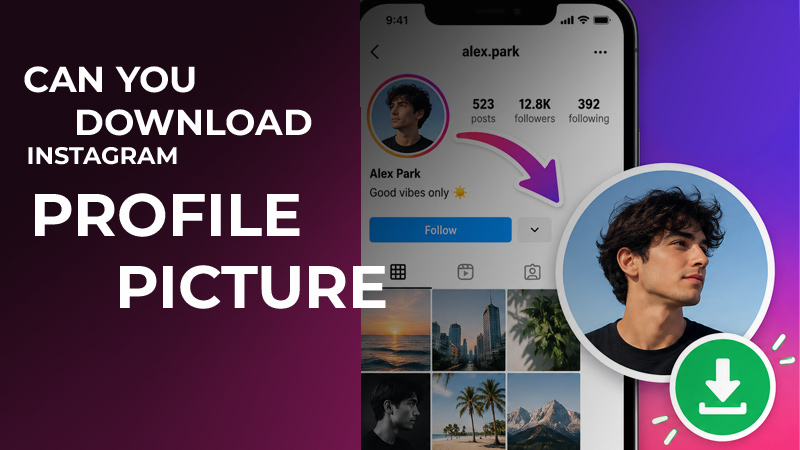
Different Ways to Download an Instagram Profile Picture
There’s more than one way to save an Instagram profile picture, depending on whether you’re using a phone, computer, or your own account.
Below, we’ll walk you through the easiest Instagram profile picture downloader:
Download Instagram Profile Picture Online
For most users, an online method is the simplest approach. You do not need to install software, and the process generally takes only a few steps.
- Find the Instagram username: Open Instagram and go to the account whose image you want to save. Copy the username or profile link. Some services accept a username, while others allow you to paste the complete Instagram profile URL.
- Open an online profile-photo tool: Choose a reputable Instagram profile photo downloader that works through a web browser. Several web-based tools currently offer ways to view or download publicly available Instagram profile images. Typically, you simply enter an @username and select the Download option. This approach is also commonly described as an Instagram DP downloader, because “DP” is widely used as shorthand for display picture.
- Enter the account information: Paste the username or profile link into the tool’s search field and submit it. Depending on the service, you may be able to download Instagram profile photo by entering either the username or a direct profile link. Most tools provide an input field that accepts either option.
- Preview the image: After the account is found, check the displayed Instagram profile picture viewer result. A dedicated tool can show the image at a larger size than the thumbnail you normally see while browsing Instagram. At this stage, you can view Instagram profile picture details more clearly before deciding whether you want to save the file.
- Save the image: Select the download button and save the image to your device. On a phone, the file may appear in your Downloads folder, Files app, or Gallery depending on the operating system and browser. On a computer, it will normally go to your browser’s default download location.
If your goal is to download Instagram profile picture in full size, this is usually the fastest method because the entire process takes place in your browser.
Download Your Own Instagram Profile Picture
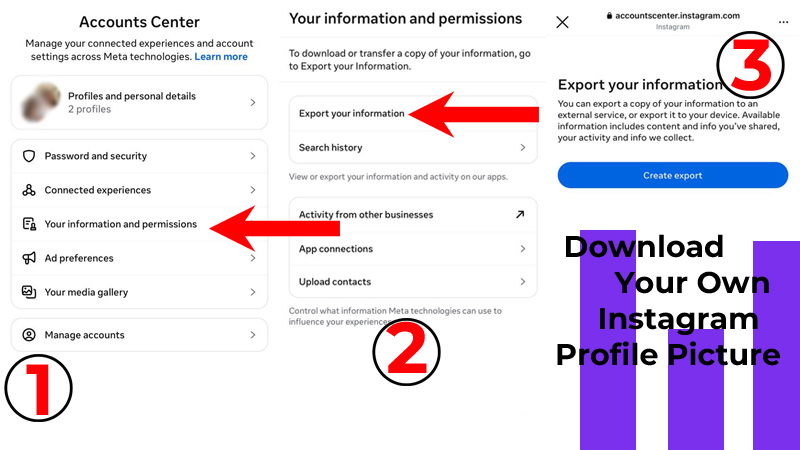
If the photo belongs to you, you have an additional option: use Instagram’s account information and data-management features rather than relying entirely on external services.
Instagram has moved its data-related controls into the Accounts Center, and the exact menu names or locations can change as the platform updates its interface.
A general process for using Instagram profile picture downloader:
- Open Instagram and go to your profile.
- Open the menu and enter the account settings area.
- Look for Accounts Center and information or data-management options.
- Choose the option for downloading or exporting your information.
- Follow Instagram’s instructions to request your data.
- When the archive is ready, download it and check the relevant profile information.
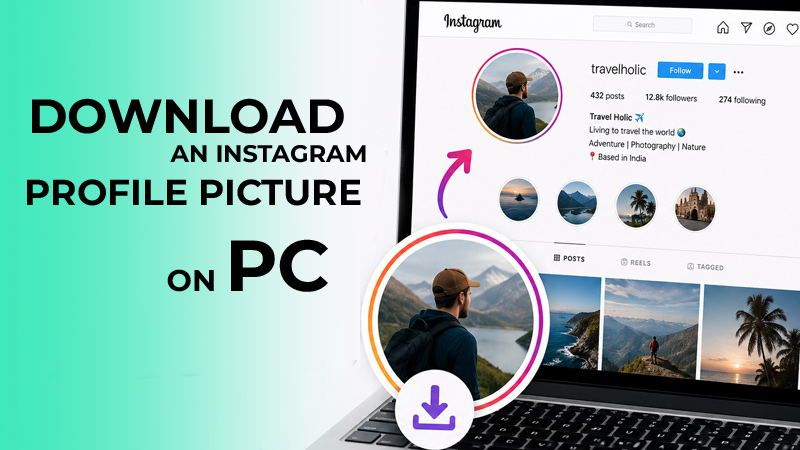
Download an Instagram Profile Picture on PC Without a Third-Party Tool
If you prefer not to use a third-party downloader, you can try working directly with Instagram’s web version. This approach is more technical and may change whenever Instagram changes how its website loads images.
In order to download Instagram profile picture, open Instagram in a desktop browser and navigate to the profile you want to inspect. Right-click the page and select Inspect.
A typical workflow is:
- Open Instagram in Chrome, Edge, Firefox, or another desktop browser.
- Navigate to the desired profile.
- Right-click and select Inspect.
- Look through the page elements for the profile image.
- Check the image source or relevant network request.
- Open the available image URL in a new tab when possible.
- Right-click the image and choose Save Image As.
Another option is a browser downloader, although extensions should be treated cautiously. Only install browser extensions from trusted sources and review the permissions they request.
Why Is My Downloaded Instagram Profile Picture Blurry?
If the saved image looks blurry, the problem is not necessarily the downloader. Several factors can affect the final result.
- The uploaded image may already be low quality: If the account owner originally uploaded a small or compressed image, there may not be enough detail to produce a sharp, larger version.
- Instagram may provide a limited-resolution version: The image you see through Instagram’s interface may not contain all the data from the original upload. A tool can only retrieve what is actually available.
- Screenshots reduce usable detail: Taking a screenshot of a tiny circular thumbnail often produces worse results than retrieving the underlying image. This is particularly noticeable when you enlarge the screenshot afterward.
- Enlarging does not create missing details: A full-size profile picture is not automatically the same thing as an untouched original file. Increasing dimensions can make an image appear larger without improving its actual detail.
- “4K” does not always mean true 4K: Some services use terms such as high-resolution profile picture or 4K to describe an enlarged or higher-quality result. Be realistic about these claims: a downloader cannot create information that was never present in the source.
If you need an HD profile photo, choose the highest-quality version actually available rather than assuming that every service can provide a true high-resolution original.
The goal of downloading an Instagram profile picture in HD should therefore be preserving the best available version, not simply increasing the number of pixels.
Instagram Profile Picture Downloader vs. Screenshot
Choosing between a dedicated service and a screenshot depends on what you need.
| Method | Quality | Ease of Use | Best For |
| Screenshot | Low | Very Easy | Quick reference |
| Online Downloader | Higher | Easy | Fast downloads |
| Browser Developer Tools | Potentially Higher | Advanced | Desktop users |
| Export Your Information | Best for your own photo | Moderate | Your own profile |
A screenshot is convenient, but it captures whatever is displayed on your screen. An online service can sometimes retrieve a better version of the available image. Developer tools give experienced users more control, while data export is more relevant when you are working with your own account.
(+7) The Best Instagram Profile Picture Downloader Tools
These tools make it easy to view and save Instagram profile pictures from publicly available accounts.
- Inflact: It offers a dedicated profile-image tool. Its current workflow asks users to copy an @username, paste it into the search field, and select Download. The service states that its profile-picture tool is intended for public content and download without login.
- Toolzu: This Instagram Downloader provides Instagram downloading tools for different types of content and includes a dedicated profile downloader. It says its service works through the browser and supports desktop and mobile devices. It also states that its standard downloader does not access private Instagram content.
- PasteYourLink: This Profile Photo Downloader lets users paste a profile link or username and download the available profile image. Its current page states that it focuses on public content and provides the result through a browser-based workflow.
- Save-Free: This Downloader is another browser-based option for working with publicly available Instagram profile content. As with any online Instagram downloader, check the site’s current privacy practices and avoid entering your Instagram password.
- FollowMeter: This tool is a browser-based Instagram tool that can help users view and save publicly available profile images. It can be a convenient option for anyone looking to download Instagram DP without installing additional software.
- SnapInsta: This downloader is designed to save publicly available Instagram content. Its browser-based approach makes it a simple option for users who want to access Instagram images without complicated steps.
- iGram: It is an Instagram media downloader that works through a web browser. Users searching for an Instagram PFP downloader can consider it as another option for accessing publicly available Instagram images.
Conclusion
Whether you need to save your own photo or a public profile image, you now know several simple and practical ways to download Instagram profile picture while getting the best quality available. Choose the method that fits your device, avoid suspicious tools, and always respect the owner’s privacy.
Ready to share your take? What’s the first profile picture you’d want to save, and why? Your experience could help others. Have you ever tried to save a profile picture and ended up with a blurry screenshot? Share your experience with blurry screenshots.