You find an Instagram video you love and think, “I need this in 4K.” You download it, open the file, and suddenly, it looks blurry.
So, what went wrong? If you want to download 4K videos from Instagram, the answer isn’t always as simple as clicking “4K.” In fact, the quality you get depends on something most downloaders don’t tell you. Let’s uncover what really happens behind the download button.
What Does 4K Mean on Instagram?
4K describes 4K video resolution, generally associated with a frame containing 3,840 pixels horizontally and 2,160 vertically. The term is commonly used for ultra-high-definition video, although the exact dimensions and encoding can vary depending on the source.
A 3840 * 2160 resolution file contains substantially more pixels than 1080p. This allows fine details to remain clearer when the video is displayed on a large screen or edited and cropped later.
However, seeing a “4K” option on a website does not automatically mean the original Instagram post was uploaded in 4K. If the source was recorded or uploaded at a lower resolution, converting it to a larger file does not recreate details that were never present.
Several factors influence the final result:
- The resolution of the creator’s uploaded file
- How Instagram processes and compresses the media
- The capabilities of the downloader
- The available source stream
- Your browser and internet connection
- Whether the file has already been processed by another platform
Instagram’s processing can affect Instagram video quality, meaning the version available online may differ from the creator’s original file. This is why the best source for your own content is always the untouched master file rather than a copy retrieved from a social platform.
Important: A downloader can retrieve an available high-resolution source, but it cannot restore missing detail.
(6) Steps to Download 4K Videos from Instagram
The basic process is straightforward. Most browser-based services follow a similar workflow: obtain the post’s URL, submit it to the service, review the available output, and save the file. To download Instagram Videos in 4K, follow these steps:
1. Find the Instagram Video
Open Instagram and locate the Reel, feed video, or other public video you want to save. Before downloading, consider whether you actually need a copy.
If the content belongs to another creator, saving it for personal reference is different from reposting, editing, or using it commercially.
For your own posts, keeping the original source file on your phone or computer is preferable because it avoids another round of platform processing.
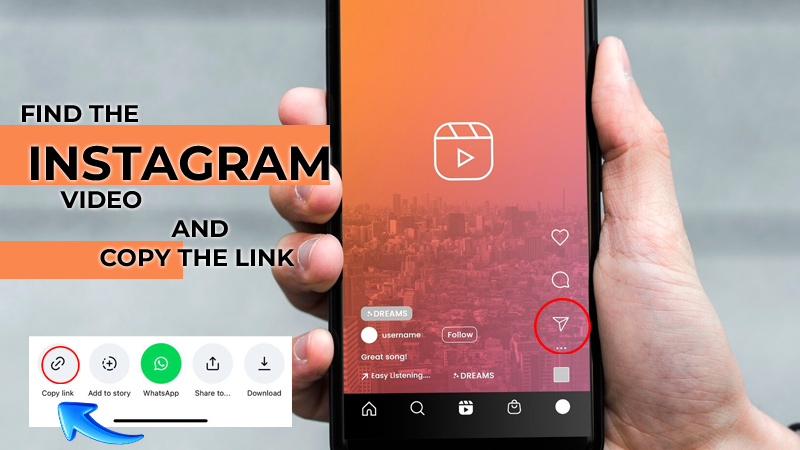
2. Copy the Video Link
Open the post and use Instagram’s sharing controls to copy its link. On many versions of the app, you can tap the Share icon and choose the option to copy the link. On desktop, you can also copy the page address from your browser.
This copy Instagram video link step gives the Instagram 4K video downloader the address it needs to locate the public post. The resulting Instagram video URL should point directly to the relevant post rather than to your profile homepage.
3. Choose a Reputable Downloader
Next, open a high-resolution Instagram downloader that supports the type of content you’re trying to save and helps you download 4K videos from Instagram.
Browser-based services can be convenient because they don’t require additional software. Most of them use a simple URL-paste workflow and work across phones and computers. For public content, many services also allow downloads without requiring you to log in to your Instagram account.
Avoid websites that request your Instagram password. A normal public-content download should not require you to hand over your account credentials.
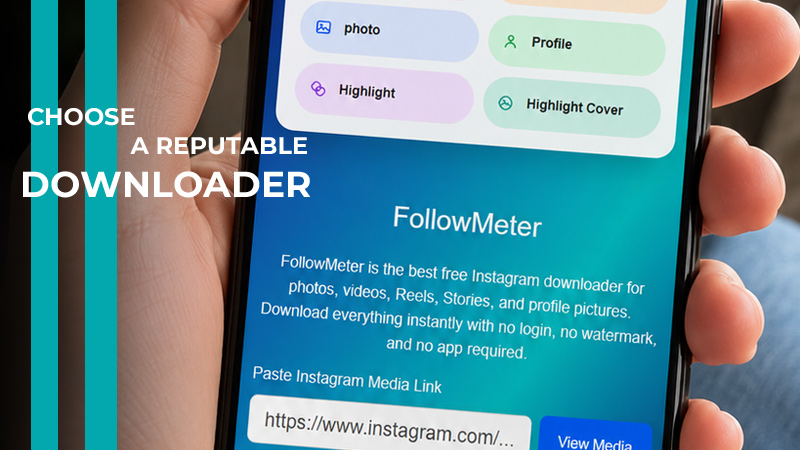
4. Paste the Link
Paste the URL into the download field. An online Instagram downloader generally processes the submitted address and then displays the available media. Depending on the service and source, you may see one or several quality options.
Most online tools use a simple process: copy the post URL from Instagram, paste it into the downloader, and wait for the available download options to appear.
5. Select the Highest Available Quality
If the service offers 2160p, 4K, or another high-resolution option, choose the highest version that is genuinely available.
This is where you should be careful with claims made by download websites. A label such as “4K” may describe an output option rather than guarantee that the source itself contains native 4K detail.
The safest approach is to download the highest available version and verify its properties afterward.
6. Download and Verify the File
Save Instagram videos in 4K to your device. Once the Instagram video download 4K is complete, inspect its properties. Check the dimensions rather than relying exclusively on the website’s description.
The downloaded video quality can be evaluated by looking at resolution, frame rate, codec, bitrate, and file size.
On a computer, right-click the file and open its properties or media information. On a phone, you can use the file manager or a media-information application.
In order to download 4K videos from Instagram, verification is particularly important because a file advertised as 4K may not contain genuine 4K source detail.
Best Tools for Downloading Instagram Videos in High Quality
Several services can be used to download high-quality Instagram videos, but their capabilities and output can change over time. The following options can help you download Instagram Reels in 4K, based on the information currently provided by the services themselves.
| Tool | Main Use | Quality Notes |
| SaveVid | Public Instagram media downloads | Advertises 1080p, 2K, 4K and 8K options |
| ReelsVideo | Instagram Reel downloads | Designed around saving Reel content |
| SSSInstagram | Videos, Reels, Stories and other media | Says up to 4K is available where supported |
| Publer | Browser-based media downloads | States that it retrieves media in the highest available quality |
| SnapInsta | Instagram media downloads | Useful for browser-based saving |
| FollowMeter | Videos, Reels, Stories and Highlights | Says up to 4K is available where supported |
How to Get the Best Possible Instagram Video Quality?
For downloading 4K videos from Instagram with the best possible result, the third-party downloader itself is only one part of the process.
- Start With the Best Source: The original video quality matters more than the name of the downloader. A native 4K source can contain substantially more detail than a 720p or 1080p file that has simply been enlarged. If you created the video yourself, keep the original video file stored separately before uploading it to Instagram.
- Select the Highest Genuine Resolution: When multiple options appear, choose the highest one that corresponds to the source. A 2160p Instagram video is generally associated with 3,840 × 2,160 output, but always verify the downloaded dimensions afterward.
- Avoid Multiple Re-Encodes: Every time a compressed video is downloaded, edited, exported, and uploaded again, additional processing may affect its clarity. Repeated encoding can contribute to video quality loss, particularly in areas with movement, gradients, fine textures, or small text. For creators, the best workflow is to edit from the master file and export a final version specifically for each platform.
- Don’t Confuse Resolution with Quality: Higher resolution does not automatically mean a better-looking video. A poorly compressed 4K file can look worse than a well-encoded 1080p file. Bitrate, codec, sharpness, lighting, motion, and the source recording all influence the final appearance. The video file resolution tells you how many pixels the file contains, but it does not tell the whole story.
- Use a Stable Connection: A stable connection helps ensure that the file downloads completely. If a download stops midway or produces a corrupted file, try again rather than repeatedly processing the same source.
Why Your Downloaded Instagram Video Isn’t Actually 4K?
One of the most common misconceptions is that choosing 4K from a downloader automatically turns any Instagram post into native 4K. It does not.
Suppose a creator uploaded a 1080p Reel. A service may technically produce a larger 2160p file, but that does not mean the file suddenly contains four times as much original detail.
Enlarging an existing image is known as video upscaling, and it can increase dimensions without recreating the information lost at the original resolution.
This distinction is particularly important when comparing an Instagram 4K downloader with the original source. A service may provide a 4K-sized output, but only the source itself can determine whether that detail is genuine.
After downloading, inspect the dimensions of the file:
- 3840 * 2160 > 4K/UHD
- 1920 * 1080 > 1080p
- 1280 * 720 > 720p
- 640 * 360 > 360p
A Full HD video is 1920 × 1080, so it should not be described as native 4K simply because someone enlarged it. The same principle applies to every video resolution; the dimensions describe the pixel grid, while actual visual quality also depends on encoding and source quality.
Final Thoughts
Getting the best results depends on the source, available resolution, and how the file is processed, not just the downloader. To download 4K videos from Instagram, always choose the highest genuine quality available and verify the final file before using it.
Ever downloaded a “4K” Instagram video that looked blurry? Would you choose true 4K over a smaller file? Check your next download’s actual resolution. What’s your best method for a high-quality video download from Instagram? Now, try these tips and share your results in the comments!