How to Copy Description from Instagram Reel?

You find a Reel with a caption worth saving, but there’s no obvious copy description from Instagram Reel button. You try to select the text, yet Instagram doesn’t make it as simple as copying from a webpage.
So, is there an easier way to get that caption? Yes, but the best method depends on whether you need the description, text inside the video, or spoken words. Here are the simplest ways to copy Reel caption without downloading the entire Reel.
Can You Copy the Description from an Instagram Reel?
Instagram does not consistently provide a dedicated Copy Caption button in its mobile interface. This is why users often have to work around the app when they want to copy Instagram Reel description.
Before choosing a method, identify which type of text you need:
- Description or caption: The written text published with the Reel.
- Text overlay: Words appearing visually within the video.
- Spoken content: Words said by the creator.
- Hashtags and mentions: Additional elements included in the published description.
These are not interchangeable. A description extractor can retrieve the written caption, but it cannot necessarily recognize words appearing inside the video or convert speech into a written transcript.
For a copy text from Instagram Reel task, the browser method is often the first option worth trying. For public content, external caption extraction services can also provide a convenient alternative. Some current tools specifically accept a public URL and return the available written caption.
(4) Methods for Copying Instagram Reel Descriptions
Whether you’re using a phone, computer, or an online tool, there are several ways to copy a description from an Instagram Reel.
The methods below cover the easiest options, from opening a Reel in a browser to extracting captions or text directly from the video.
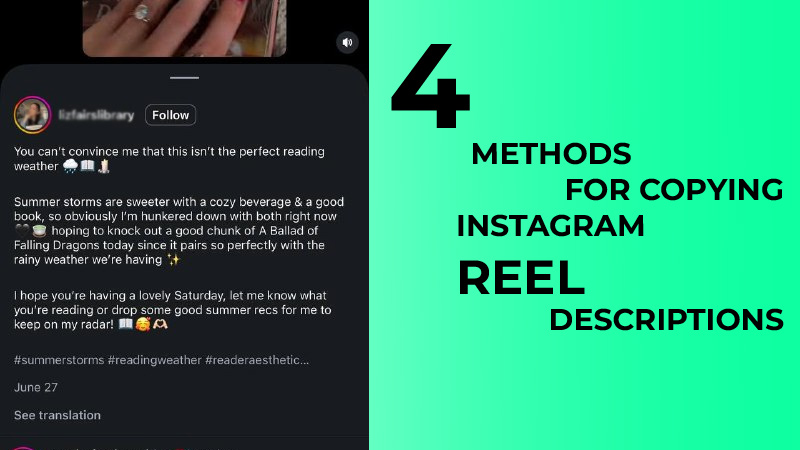
· Copy a Reel Description on Your Phone
If Instagram doesn’t let you select the caption directly, opening the Reel in a mobile browser can make the text easier to access and copy. Follow these steps:
1. Copy the Reel Link and Open It in a Browser
For many users, this is the simplest way to copy an Instagram caption when the mobile interface does not allow convenient selection.
- Open Instagram.
- Find the Reel you want.
- Tap the Share button.
- Select Copy link.
- Open Chrome, Safari, or another mobile browser.
- Paste the link into the address bar.
- Open the Reel.
- Expand the description if necessary.
- Press and hold the relevant words.
- Select Copy.
This method can work because the browser interface may make the caption easier to select than the Instagram mobile interface. However, the exact behavior can vary depending on the device, browser, login status, and Instagram’s current interface.
If direct text selection still does not appear, do not assume that the Reel itself is unavailable. Try the desktop method or an extraction service instead.
2. Use Your Phone’s Built-In Text Recognition
If you are trying to copy Reel text that appears on the screen rather than the description underneath the video, screenshots can be useful.
Pause the Reel at the frame containing the words, take a screenshot, and use your phone’s built-in text recognition feature. On supported devices, you can then select the recognized words and copy and paste them into Notes, Google Docs, a message, or another app.
This is particularly useful when the creator has added text directly to the video.
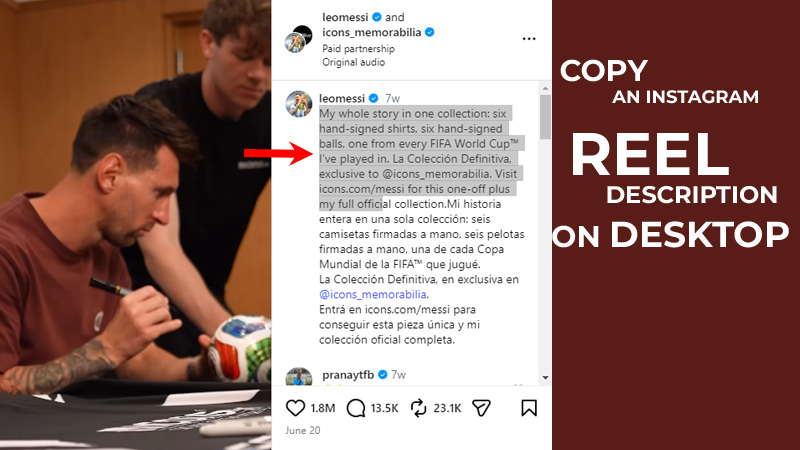
Copy an Instagram Reel Description on Desktop
A computer can make it easier to copy a description from an Instagram Reel, giving you more control over selecting, copying, and saving the text.
To copy an Instagram Reel caption, follow these steps:
- Open Instagram in a desktop browser.
- Find the Reel.
- Open the Reel’s page.
- Expand the description if it is shortened.
- Place your cursor at the beginning of the desired text.
- Drag across the words to highlight them.
- Right-click and choose Copy.
- Paste the content wherever you need it.
The browser version of Instagram can be especially useful when the mobile interface does not provide convenient text selection.
If the Reel is public and its caption is exposed on the web page, this approach can be enough. If the text cannot be selected, however, an external extractor may be more practical.
Copy a Reel Caption Using an Online Tool
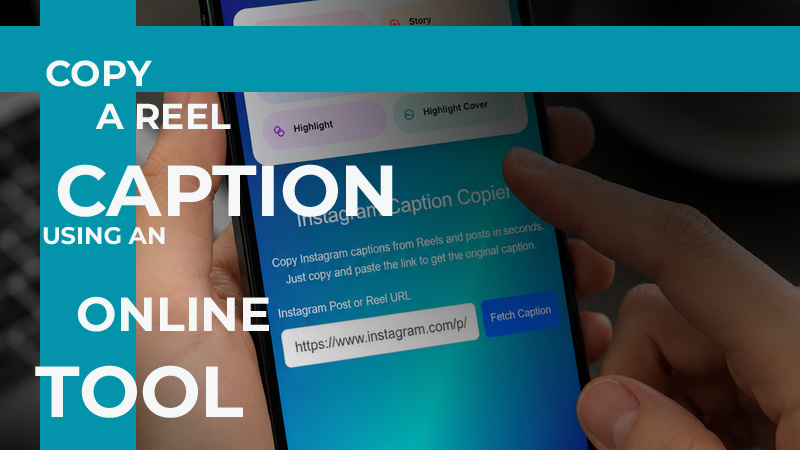
Another option is an online Instagram caption copier. These services are designed to retrieve the written caption associated with a public Instagram URL and present it as selectable text.
To copy a caption from an Instagram Reel using this approach:
- Open Instagram.
- Find the Reel.
- Tap Share.
- Choose Copy link.
- Paste the Reel URL into a caption extraction service.
- Start the extraction process.
- Review the returned caption text.
- Copy the text to your clipboard.
A current caption extraction tool may be useful if you regularly collect captions for research, content planning, translation, or archiving. However, results depend on whether the Reel and its associated information are publicly accessible.
Copy Text from an Instagram Reel Video
Here is where an important distinction matters. The description beneath a Reel is different from the text inside an Instagram Reel. If you want the words physically displayed over the video, a caption extractor may not help when you copy the description from an Instagram Reel.
For example, imagine a cooking Reel. The description might say: “Here are five easy ingredients for a quick dinner.” But the video itself might display: “Step 1: Add two eggs.”
Those are two separate types of content.
1. Use OCR
If the words are visually displayed in the video, OCR text extraction can recognize them from a screenshot or video frame.
A practical workflow is:
- Pause the Reel where the desired words appear.
- Take a screenshot.
- Open the screenshot with an OCR-capable app.
- Select the recognized words.
- Copy the result.
- Check the text for recognition errors.
OCR is particularly useful for recipes, lists, quotes, subtitles, instructions, and other static text.

2. Use a Transcript Tool
If the creator is speaking and you want their spoken words in written form, you need a transcript tool rather than a caption extractor.
Current transcription services can process supported public Reels and convert spoken audio into editable text. These tools typically offer transcript output in formats such as plain text or subtitles, making it easier to save Instagram Reel captions, edit, or reuse spoken content.
This is different from retrieving the creator’s written description. A transcript represents what is spoken in the video, while the description represents the text the creator published with the post.
What If You Can’t Copy the Instagram Reel Description?
If you cannot extract the Instagram Reel caption, the problem may be related to the Reel’s privacy settings, the device you are using, or the type of text you want to copy. Try these solutions before giving up.
- The Reel Is from a Private Account: Many third-party tool services only work with public content. A private Reel may not be accessible to an external extractor because the service cannot retrieve its data without appropriate access. If the public Instagram Reel is available without login restrictions, an extraction service is more likely to work.
- The Caption Is Too Long: If only part of the description is visible, tap the option that expands the full description before attempting to select it. If you are trying to copy an Instagram caption on your phone, you can also open the Reel on a computer, where longer descriptions may be easier to select and copy.
- Instagram Doesn’t Let You Select the Text: If the Instagram mobile app does not let you highlight the description, copy the Instagram Reel link and open it in a browser. If that still fails, paste the link into a reputable Instagram Reel caption copier or another extraction service designed for public content.
- The Text Is Inside the Video: If you need Instagram video text rather than the written description, a caption extractor may not help. Text displayed over the footage is part of the video itself, so use a screenshot and OCR instead. For spoken content, use transcription.
- The Reel Has Been Deleted: If the creator has removed the Reel, its public URL may no longer provide access to the original content. External services cannot reliably retrieve information that is no longer publicly available.
Conclusion
To copy the description from an Instagram Reel, start by opening the Reel in a browser and selecting the caption, or use a reliable extraction tool if direct copying doesn’t work. If you need text displayed inside the video or spoken content, use OCR or transcription instead.
Choose the method that matches the type of text you want, and always respect the original creator’s content.
What’s the hardest part of copying text from an Instagram Reel? Your simple trick might save someone else a lot of time. Which method would you try first to copy a Reel caption? Drop your best Reel text-copying tip in the comments!