How Can You Easily Download Someone’s Photos from Instagram to Your Phone?

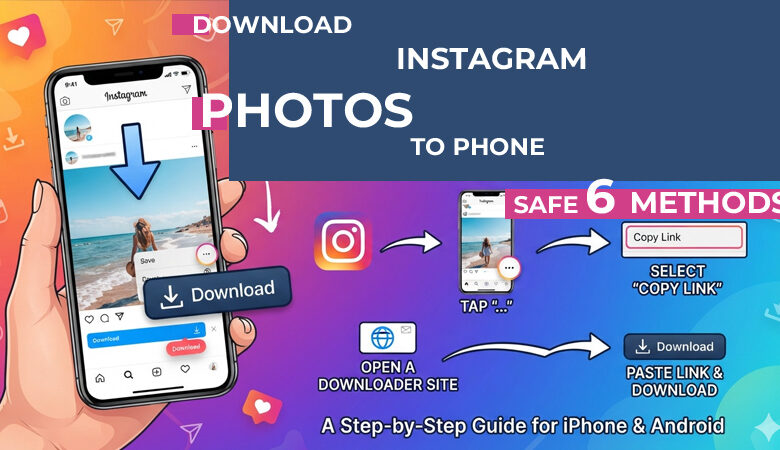
Download Instagram Photos to Phone: 6 Safe and Easy Methods
Sometimes you see an Instagram photo you actually need later, not just want to like and forget. It might be a product shot, a recipe step, a hairstyle idea, a travel place, or a post you want to compare again before making a decision. Before you download Instagram photos to phone, it helps to know which method keeps things simple, safe, and respectful of the creator.
Before You Download Instagram Photos: Privacy, Permission, and Safe Use
Before you download Instagram photos to phone, take a second to think about where the image came from and what you plan to do with it. Saving a public post for your own notes is one thing. Reposting it, cropping out the name, using it in an ad, or sharing a personal photo is very different. Skip anything with private details, kids, addresses, documents, or sensitive moments, and protect the creator’s rights.
Can You Download Instagram Photos Directly to Your Phone?
Most of the time, Instagram will not hand you a clean “save to gallery” button on someone else’s photo. So the real question is not just whether it is possible, but which workaround makes sense. For a post you only want to find again, saving it on Instagram is enough. For an image file, a screenshot, a copied link, or a careful web tool can help you download Instagram photos to phone with less risk.
Method 1: Save an Instagram Photo Inside the App
A good first step before trying to download Instagram photos to phone is using Instagram’s own Save button. Tap the bookmark icon under the post, then place it in a collection if you want to keep things organized by topic. This does not add the image to your gallery, but it is the cleanest option for recipes, product ideas, travel notes, or posts you may need to check again later.
Method 2: Save Instagram Photos to Phone with a Screenshot
For a photo you need in your camera roll, a screenshot is often the quickest route. Open the post, zoom only if needed, take the screenshot, then crop out captions, buttons, and extra screen space in Photos or Gallery. This method works well when you want to download Instagram photos to phone for personal notes, shopping comparisons, or visual reminders. Just remember that a screenshot may lose image quality, so it is not ideal for printing, editing, or reposting.
Method 3: Copy an Instagram Photo Link on iPhone or Android
When the post is public, and you need a cleaner option than a screenshot, copying the link is the next practical step. On iPhone or Android, open the post, tap the share icon or three-dot menu, then choose Copy Link. Save it in Notes, Messages, or your browser so you can return to the exact post later. That same link is also what safe web tools use to download Instagram photos to phone.
Method 4: Download Your Own Photos from Instagram
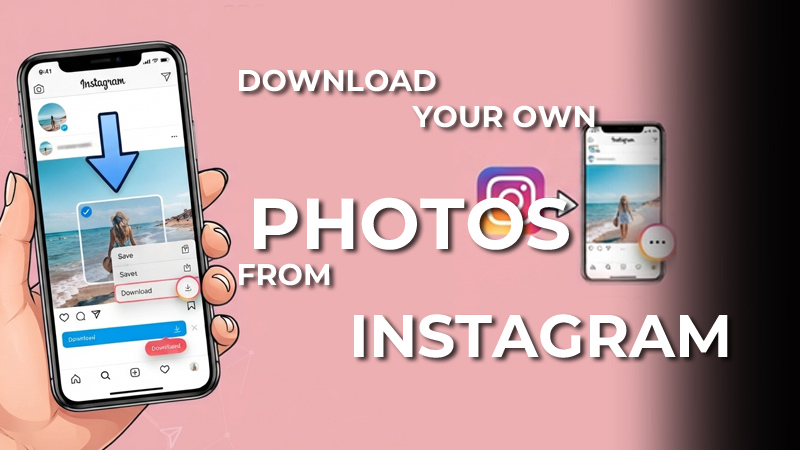
When the photos are yours, do not rush to a random downloader. Instagram already gives you a cleaner way to get your own posts back through account data or Accounts Center. It can help with old uploads, backup folders, portfolio work, or moving content to another device. For this specific case, it is usually safer to download Instagram photos to phone through your official account settings.
Method 5: Ask the Creator for the Original Photo
When the photos are yours, skip the sketchy downloader sites. Instagram already has a built-in way to request your account files through Accounts Center, which is better for old posts, portfolio images, backups, or moving content to a new phone. It may take longer than grabbing one image, but it is safer, cleaner, and a better way to download Instagram photos to phone without losing control of your own content.
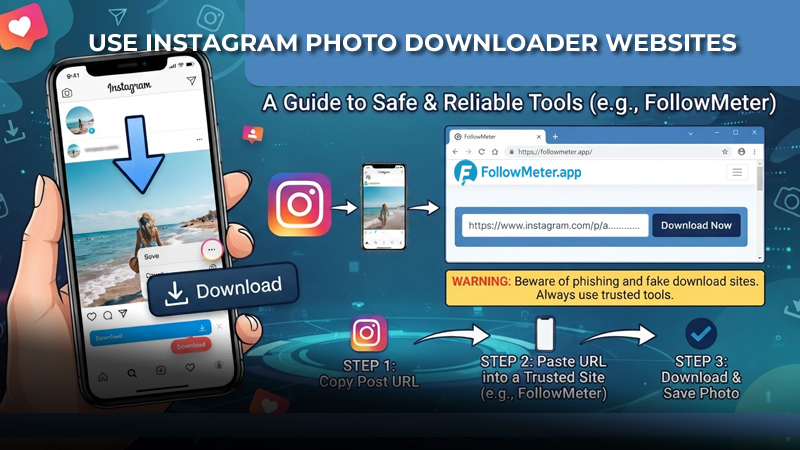
Method 6: Use Instagram Photo Downloader Websites Carefully
When you need the image file itself, a public Instagram link can sometimes be used with a browser downloader. Sites such as Toolzu, Inflact, and Followmeter are examples people often try, but they are still third-party tools, not Instagram features. So before you download Instagram photos to phone, check the page carefully.
- Paste only a public post link, not a private profile link.
- Close the site if it asks for your password, login code, or account access.
- Ignore buttons that push APK files, extensions, or unknown apps.
- After downloading, check Photos, Gallery, Files, or Downloads.
- Use the image only for personal, permitted, or clearly public purposes.
These websites can save time, but they should be your backup option, not your first move. The safer choice is always the one that protects your account security and the creator’s content.
Best Way to Download Instagram Photos to iPhone
On iPhone, the cleanest choice depends on what you need afterward. For a quick visual note, use a screenshot, then crop it in Photos and add it to an album. For a public post you want as a file, copy the link in Instagram and use Safari carefully. This is usually the simplest way to download Instagram photos to phone while keeping your iPhone storage organized.
Best Way to Download Instagram Photos to Android
Android makes this a bit easier because saved files are usually easy to find afterward. After copying a public Instagram post link, use Chrome or another trusted browser, then look in Gallery, Files, or Downloads. For quick reminders, a cropped screenshot is often enough. For an actual file, this is a practical way to download Instagram photos to phone without cluttering Android storage.
Mistakes to Avoid When Downloading Instagram Photos
Before you download Instagram photos to phone, avoid the small mistakes that can turn a simple save into an account or privacy problem.
- Do not enter your Instagram password on any downloader website.
- Do not use tools that ask for verification codes, APK installs, or browser extensions.
- Do not repost, sell, or edit someone’s photo without permission.
- Do not save images that show private documents, addresses, children, or sensitive moments.
- Do not trust every “Download” button on ad-heavy pages.
A safe method should protect your account and respect the person who posted the photo.
Which Instagram Photo Download Method Should You Use?
The right method really comes down to what you need the photo for. Saving inside Instagram is enough for a post you just want to find again. A screenshot works for a quick personal note. A copied public link is better when you need the file itself. For work, reposts, or edits, ask first before you download Instagram photos to phone and keep usage rights clear.
FAQs About How to Download Instagram Photos to Phone
Can I download Instagram photos to phone without adding another app?
Yes. A screenshot, the Instagram Save button, or a browser downloader for a public link is usually enough. I would avoid any app that wants extra permissions just to save one image.
Does Instagram tell someone when I save or screenshot their photo?
For normal feed posts, Instagram usually does not send a notification. Still, saving something quietly does not make it yours, especially with private content.
Why does the photo look blurry after I save it?
That usually happens because of cropping, screen size, Instagram compression, or a weak downloader. For better quality, the cleanest option is asking the creator for the original file.