How to Copy Instagram Caption on iPhone: 6 Easy and Safe Methods

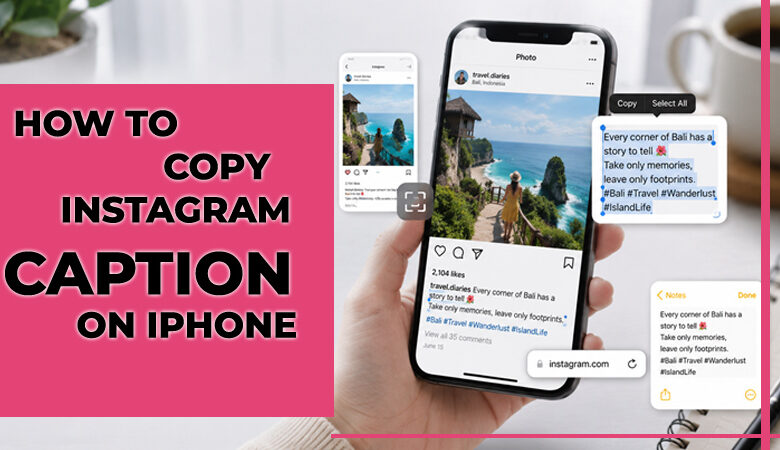
Sometimes you find an Instagram caption worth saving, but the iPhone app gives you no simple way to highlight and copy it. That is exactly why knowing how to copy Instagram caption on iPhone can save time, especially when you want to keep a quote, a product detail, a recipe, or a post idea for later. In this guide, you will learn the most practical options, from Live Text and screenshots to safer tools that do not ask for your password.
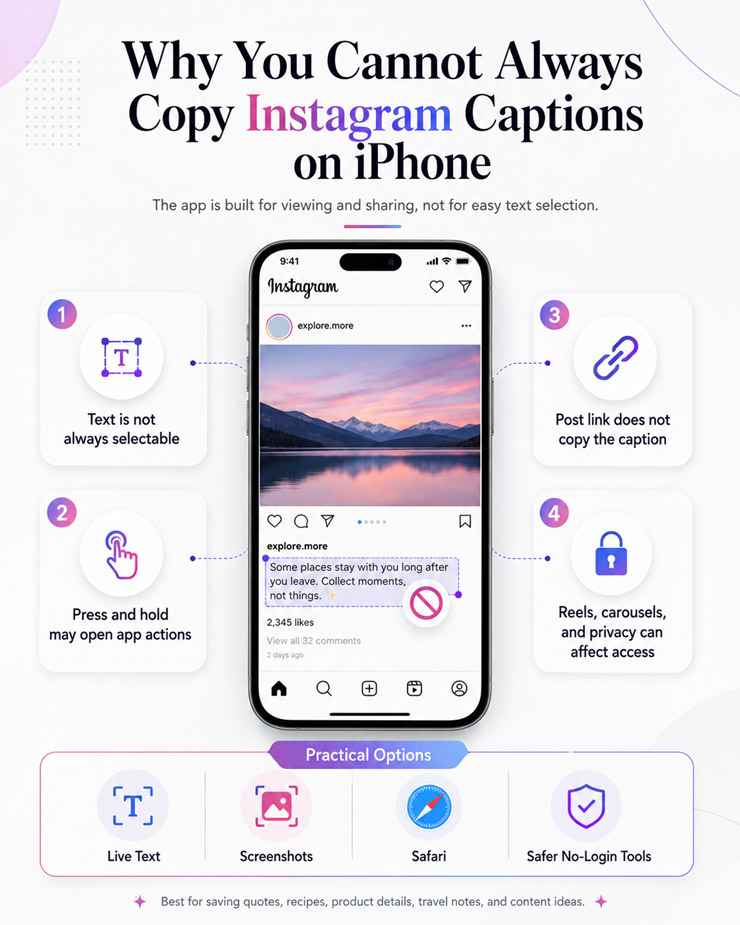
Why You Cannot Always Copy Instagram Caption on iPhone
Sometimes you come across an Instagram caption you actually want to keep, but the iPhone app does not make it easy to highlight and copy the text. That is where knowing how to copy Instagram caption on iPhone becomes useful, whether you are saving a quote, product details, a recipe, travel notes, or a content idea for later. This guide walks you through practical options, including Live Text, screenshots, Safari, and safer tools that do not ask for your password.
Quick Answer: The Easiest Way to Copy Instagram Caption on iPhone
The simplest option is usually the one already built into your iPhone. Open the post, tap more so the full caption is visible, take a screenshot, then open that image in Photos and use Live Text to copy the words. This is often the safest starting point if you are trying to learn how to copy Instagram caption on iPhone, because you do not need to log in to any outside tool. After copying, paste the text into Notes and clean up any broken lines, missing emojis, or wrongly detected words.
Method 1: Copy Instagram Caption on iPhone Using a Screenshot
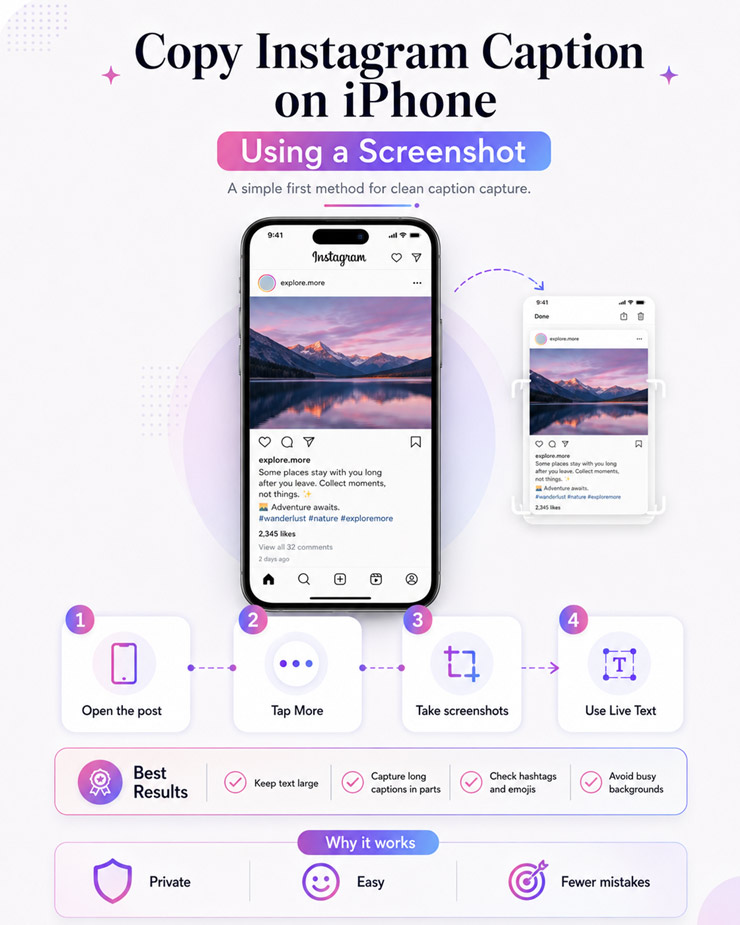
A screenshot is usually the easiest place to start because it captures the caption exactly as it appears on your screen. Open the post or Reel, tap more if the caption is cut off, and make sure the text is large enough to read before taking the screenshot. For longer captions, take more than one screenshot rather than trying to fit everything into a crowded image. That simple step can help Live Text read the words more cleanly when you copy Instagram caption from screenshot.
It is also worth checking the image before you copy anything. Usernames, hashtags, emojis, and line breaks can be missed when the text is small or sitting over a busy background. For someone learning how to copy Instagram caption on iPhone, this method is practical because it avoids random tools, keeps your account login private, and gives you a cleaner result with fewer copying mistakes.
Method 2: Use iPhone Live Text to Copy Instagram Caption from a Screenshot
Once the screenshot is in your Photos app, open it and tap the small text icon if your iPhone detects words in the image. Press on the caption, drag the handles around the part you need, then choose Copy. I usually recommend pasting it into Notes first, not straight into a message or post, because Notes gives you a quiet place to fix line breaks, spacing, and anything that looks off.
Live Text is helpful, but it is not perfect. It can confuse hashtags, miss emojis, or read a small letter as the wrong character, especially when the caption is long or the screenshot is not sharp. If you are learning how to copy Instagram caption on iPhone, this method works best when you treat the copied text as a rough capture and give it one careful review before using any important details.
Method 3: Copy Instagram Caption on iPhone Using Safari or Instagram Web
A browser can sometimes make the job easier than the Instagram app. Tap the share icon on the post, copy the link, and open it in Safari. Once the post loads on Instagram Web, try pressing on the caption and dragging over the text you need. This is not guaranteed on every post, but it is worth trying when screenshots are messy or the caption is too long.
Safari is most useful for public posts, or for posts you can view after signing in through the browser. If the text still will not select, use Request Desktop Website or send the link to your computer. When you are figuring out how to copy Instagram caption on iPhone, this method is a solid backup, especially when Live Text misses a line or reads the words poorly.
Method 4: Use an Instagram Caption Copy Tool Without Logging In
An online caption tool can be helpful when the post is public, and the caption is too long to deal with by hand. The safer kind of tool only asks for the post link. It should not ask for your Instagram username, password, two-factor code, or any account permission. Paste the post URL, let the tool read the caption, then copy the result into Notes so you can check the formatting. This is a practical option when you are learning how to copy Instagram caption on iPhone and need a quicker way to handle long captions.
Be selective, though. Skip any website that pushes downloads, opens too many pop-ups, or makes login sound necessary. A reliable caption copy tool should feel simple, work mainly with public posts, and leave you in control of the final text. Before using it, check the copied caption for missing hashtags, odd spacing, broken line breaks, or emojis that did not transfer correctly.
Method 5: Use Safe iPhone Apps to Extract Instagram Captions
You do not always need a special Instagram app for this. In fact, the safer route is usually to use apps that read text from an image. If you are learning how to copy Instagram caption on iPhone, these apps can help you work from a screenshot instead of giving your Instagram login to a tool you do not fully trust.
- Apple Photos: Use Live Text on a screenshot you already saved.
- Apple Notes: Paste the caption here first so you can clean it up.
- Google Photos: Useful when you already back up screenshots there.
- Google Lens: Good when the caption is small, crowded, or hard to read.
- Microsoft Lens: Helpful for longer screenshots that need cleaner text detection.
Before you install anything new, check what permissions the app wants. A safe app should help with text recognition, not ask for your Instagram password. Once the caption is copied, give the final text one quick read for hashtags, usernames, emojis, and spacing.
Method 6: Copy Instagram Text Manually When Other Methods Do Not Work
Sometimes the old-fashioned way is still the safest. If the caption is short, or if Live Text keeps misreading a code, username, or place name, type it into Notes yourself and check it line by line. It takes a little longer, but you control the final text. When you are working out how to copy Instagram caption on iPhone, manual typing is useful for discount codes, recipe steps, addresses, or any caption where one wrong character could cause a problem.
Best Websites to Copy Instagram Captions Safely
A website tool can be handy when the post is public, and you just want the caption text without installing anything. If you are working out how to copy Instagram caption on iPhone, stick with tools that only need the post URL and do not ask you to sign in.

- Snaplytics Instagram Caption Copy Tool: Good for pulling captions, hashtags, mentions, and emojis from a public Instagram link.
- Instachecker Copy Instagram Caption: A simple web option that says it works without an app or Instagram login.
- FollowMeter Copy Caption: Useful for quickly copying caption text from public post links.
- Infast Downloader Caption Tool: A no-login option that can help with public Instagram captions.
- VIDOOQ Instagram Caption Copier: Built for copying captions, hashtags, and emojis from a pasted URL.
Before you use any caption copy tool, take a quick look at the page. If it pushes downloads, opens too many pop-ups, or asks for your password, leave it. For private posts, a screenshot is usually the safer choice.
What to Avoid When Copying Instagram Captions on iPhone
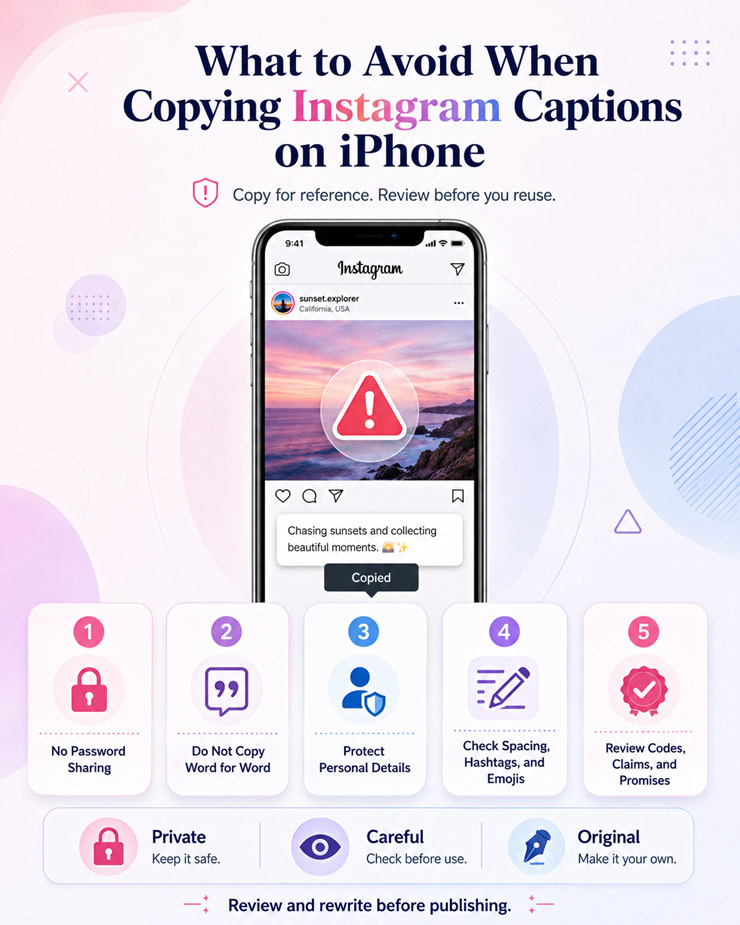
Copying a caption is simple enough, but the small details still matter. As you learn how to copy Instagram caption on iPhone, watch out for anything that could put your account, your content, or someone else’s privacy at risk.
- Do not type your Instagram password into a random caption tool.
- Do not copy another creator’s caption word for word and post it as your own.
- Avoid reusing captions with private addresses, phone numbers, or personal details.
- Check the copied text for broken spacing, missing hashtags, wrong names, and changed emojis.
- Be extra careful with discount codes, medical claims, legal advice, or product promises.
A good rule is to copy for reference, then review and rewrite before publishing. That keeps the text useful without making it careless or risky.
Final Recommendation: The Safest Way to Copy Instagram Caption on iPhone
The safest choice is the one that keeps you away from unnecessary logins. Take a clear screenshot, use Live Text, then paste the caption into Notes and read it once before you save it. If you are deciding how to copy Instagram caption on iPhone, start with this method. It is simple, private, and less likely to create problems with broken spacing, missing emojis, or copied words you did not mean to keep.
FAQs About How to Copy Instagram Caption on iPhone
Can I copy an Instagram caption directly on iPhone?
Sometimes, but not always. The Instagram app often does not let you select caption text like you would in Safari or Notes. That is why people look for how to copy Instagram caption on iPhone and end up using screenshots, Live Text, or Instagram Web.
What is the safest method?
For most users, screenshot plus Live Text is the safest choice. You are not giving your password to a random tool, and you can check the copied text before saving it.
Do caption copy websites work with private posts?
Most of them do not. A caption copy tool usually needs a public post link. If the post is private but visible to you, a screenshot is usually more realistic.
Why are emojis or line breaks missing?
Text tools can read words well but still miss emojis, spacing, hashtags, or symbols. Always paste the caption into Notes first and clean it up before using it.